Garmin Watch Activity · Version 1.2.3

ARTILLIS

Progressive Muscle Relaxation

A guided progressive muscle relaxation app for Garmin watches with timed phases, distinct vibration cues and Eyes-Closed Mode for following a familiar routine without constantly checking the screen.

View on Garmin Connect IQ
PlatformGarmin watches
Current version1.2.3
Ideal forRelaxation and recovery
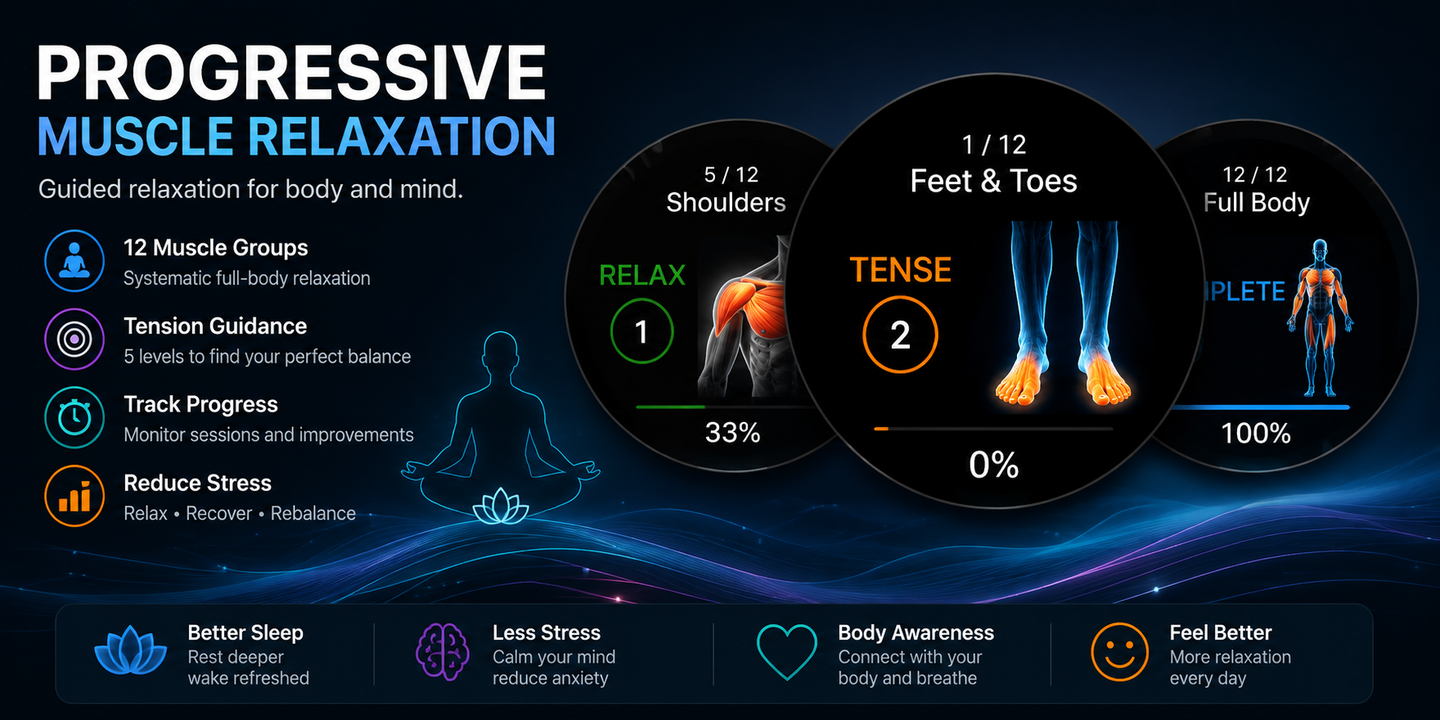
Progressive Muscle Relaxation Garmin app hero image

Overview

Progressive Muscle Relaxation is designed to help you unwind directly from your Garmin watch. Choose the routine that suits the time you have and the area you want to focus on, then let the watch guide you through timed tense and relax phases with on-screen prompts and optional vibration and sound cues. Once the app is installed, the routine can be completed without needing your phone.

Where to find PMR on your watch

PMR records and saves a Garmin FIT activity. Because of this, it appears in your watch’s Activities list rather than the Apps list. Open Activities, scroll to the 4-dot / More section if needed, then select Progressive Muscle Relaxation. You can add it to your favourites from there.

RELAX WITH YOUR EYES CLOSED

Eyes-Closed Mode

Settle into a familiar routine and let the watch guide your tense and relax phases through distinct vibration patterns. Once you know the muscle-group sequence, you can close your eyes and focus on the session instead of checking the countdown.

Enable Vibration in PMR Settings before you start. Eyes-Closed Mode uses the existing session cues; there is no separate mode switch. Optional sound cues can also help mark the start of each muscle group on supported watches.

  • Tense: one firm vibration.
  • Relax: two short vibrations.
  • Between muscle groups: a longer, gentle vibration when a pause is included.
  • Session complete: a three-part vibration pattern.

Try the routine with the screen visible first so you recognise the cues and know which muscle group comes next. The app does not speak muscle names.

Choose your routine

Full Body

The complete progressive muscle relaxation routine, working through 12 muscle groups from the lower body upwards.

Quick Relax

A shorter routine for times when you want a quicker guided relaxation session.

Upper Body

Focuses the session on the upper-body muscle groups.

Lower Body

Focuses the session on the lower-body muscle groups.

Bedtime

A routine option designed for winding down as part of your evening or bedtime routine.

Key features

Eyes-Closed Mode

Follow a familiar routine with distinct tense, relax and completion vibrations, helping you focus on relaxation with your eyes closed.

Custom session timings

Adjust the tense, relax and pause timings so the routine runs at a pace that suits you.

Vibration & sound cues

Optional cues tell you when phases change, helping you follow the routine without constantly watching the screen.

Muscle artwork & next-muscle preview

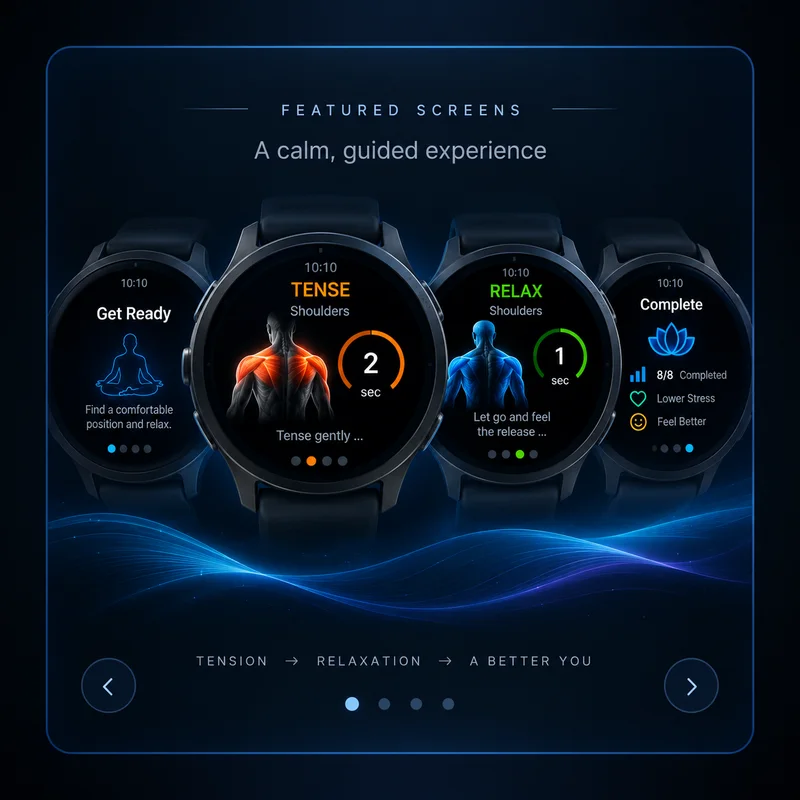
Muscle illustrations, phase prompts and countdowns guide each stage. Halfway through the relax phase, the artwork previews the next muscle group so you can prepare for what comes next.

Touchscreen controls

On supported touchscreen watches, including Venu-style devices, tap to select and use swipes to navigate. Hold the screen before starting a session to open Settings.

Session controls

Pause, resume, skip or exit the routine when you need to stay in control of the session.

Heart rate & stress

Where supported by the watch, PMR can display heart-rate and stress readings before and after the routine.

Save your session

On supported devices, completed sessions can be saved as a FIT activity so you can keep a record of your relaxation sessions.

Phone-free once started

Run the relaxation routine directly from your watch without needing to play an audio track or keep your phone beside you.

Best for

  • Unwinding after a busy or stressful day
  • Short or full-body guided relaxation sessions
  • Focusing on just the upper or lower body
  • Adding a guided relaxation routine before bed
  • Garmin users who want simple, phone-free guidance from the wrist
Garmin compatibility

Check the Garmin Connect IQ Store listing for the current compatible-device list and any device-specific details.

Need help? Email .

← Back to all apps

SETUP & INSTRUCTIONS

Getting started

Setup

Install and configure

  1. Install Progressive Muscle Relaxation (PMR) from the Garmin Connect IQ Store.
  2. After installation, allow the watch a moment to refresh its Activities list.
  3. Open PMR once so the app can initialise normally.
  4. Choose from Full Body, Quick Relax, Upper Body, Lower Body or Bedtime.
  5. Adjust the available session settings to suit you, including tense, relax and pause timings and optional vibration / sound cues where supported.
Access

Find it under Activities

  1. Open your Garmin watch’s Activities list — do not look in Apps.
  2. PMR is listed as an activity because it records and saves the relaxation session as a FIT file.
  3. If it is not among your favourite activities, scroll to the 4-dot / More section and select Progressive Muscle Relaxation there.
  4. Use the watch’s activity-management options if you want to add PMR to favourites or move it higher in the list.
Instructions

How to use it

  1. Open PMR and select the routine you want to use.
  2. Start the session and follow the on-screen Tense and Relax prompts and countdowns. The Full Body routine works progressively through 12 muscle groups.
  3. For Eyes-Closed Mode, enable Vibration in Settings and learn the muscle-group order and cue patterns with the screen visible first. Then follow a familiar session with your eyes closed; one firm vibration means Tense and two short vibrations mean Relax.
  4. During a session you can use the available controls to pause, resume, skip or exit when needed.
  5. Where supported, the app can show heart-rate and stress readings before and after the routine.
  6. At the end of the session, review the completion/results information and, on supported devices, save the session as a FIT activity if you want to keep a record.
Touchscreen watches

Venu-style touch controls

  • Before starting: hold the screen or swipe down to open Settings; tap to start the session.
  • In Settings: tap to move to the next setting, swipe up or down to adjust it, and swipe right to return.
  • During a session: tap to open the session menu, swipe up to skip ahead, or swipe right to open the stop menu when a recording is active.
  • At completion: tap to bring up Save / Discard when a recording is waiting to be saved.
Help

Troubleshooting

  • PMR is installed but missing: look in Activities, not Apps. Check the 4-dot / More section first.
  • It appears after reinstalling, then later seems to move: check both the favourite Activities list and the full 4-dot / More Activities section.
  • Glance not available: Store-installed and sideloaded builds can behave differently. A sideloaded app may not appear in the Glances “Add” list even when the activity itself runs correctly.
  • UP button opens watch settings instead of the PMR menu: make sure you are inside PMR and using the current store build; button behaviour can differ by model and by older test builds.
  • No heart-rate or stress value: the app may show “--” when the watch cannot provide a reading. That is expected rather than an app failure.
  • No vibration: check both the PMR vibration option and the watch-level vibration / alert settings.