Garmin Watch Data Field · Version 2.0.0

ARTILLIS

Multi Activity Popup Reminder

A Garmin watch version of the activity popup reminder, giving you useful prompts when you start an activity.

View on Garmin Connect IQ
PlatformGarmin watches
Current version2.0.0
Ideal forOn-watch activity reminders
Multi Activity Popup Reminder watch version hero image

Overview

The watch version brings the same core idea to compatible Garmin watches. It is built for people who want quick prompts on their wrist at the start of an activity, making it easier to remember routine notes or key reminders without reaching for a phone.

Key features

Made for watches

Designed for compatible Garmin watches.

Activity-start reminders

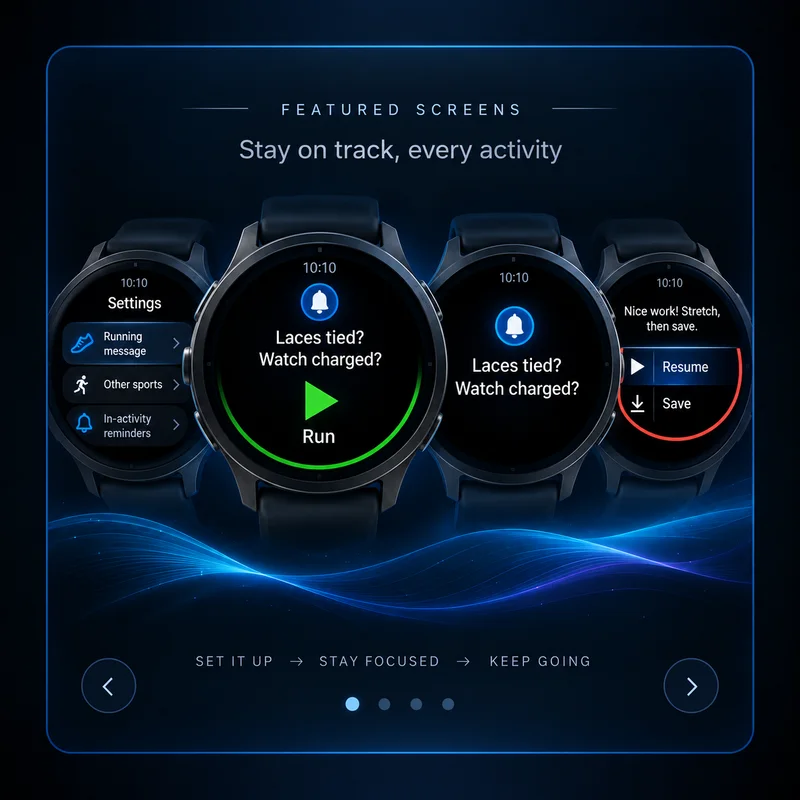
Shows prompts when an activity begins.

Useful for routines

Great for reminders that repeat across walks, runs, rides, hikes or other activity types.

Simple and practical

Focused on doing one job clearly and quickly.

Best for

  • Garmin watch users
  • Simple repeated activity reminders
  • Hands-free prompts at the start of a session
Garmin compatibility

Check the Garmin Connect IQ Store listing for the current compatible-device list and any device-specific details.

Need help? Email .

← Back to all apps

SETUP & INSTRUCTIONS

Getting started

Setup

Install and configure

  1. Install Multi Activity Popup Reminder (Watch version) from the Connect IQ Store.
  2. Add the data field to the Garmin activity or activities where you want it to run.
  3. Open its Connect IQ settings and enter the reminder text for the supported activity types.
  4. Sync the settings to the watch.
Access

How to find it on your Garmin

  1. Open the activity you normally use on the watch.
  2. Edit the activity data screens / data fields and add Multi Activity Popup Reminder.
  3. Once added, start the activity normally; the reminder logic runs as part of that activity.
Instructions

How to use it

  1. Use a different message for each supported sport or activity where available.
  2. Start the activity and read the popup reminder when it appears.
  3. It is useful for repeat checks such as equipment, hydration, route or setup reminders.
Help

Troubleshooting

  • If nothing appears, confirm the data field is added to the exact activity profile you are starting.
  • If a message is old or blank, reopen Connect IQ settings, save it again and sync.
  • This is the watch version; Garmin Edge users should use the separate Edge listing.