Garmin Watch Data Field · Version 1.0.0

ARTILLIS

RACEWISE

Run your race with a clear plan. Set a distance and goal time, then see live pacing guidance inside your normal Garmin Run activity.
PlatformGarmin watches
Current version1.0.0
CategoryData Field

Overview

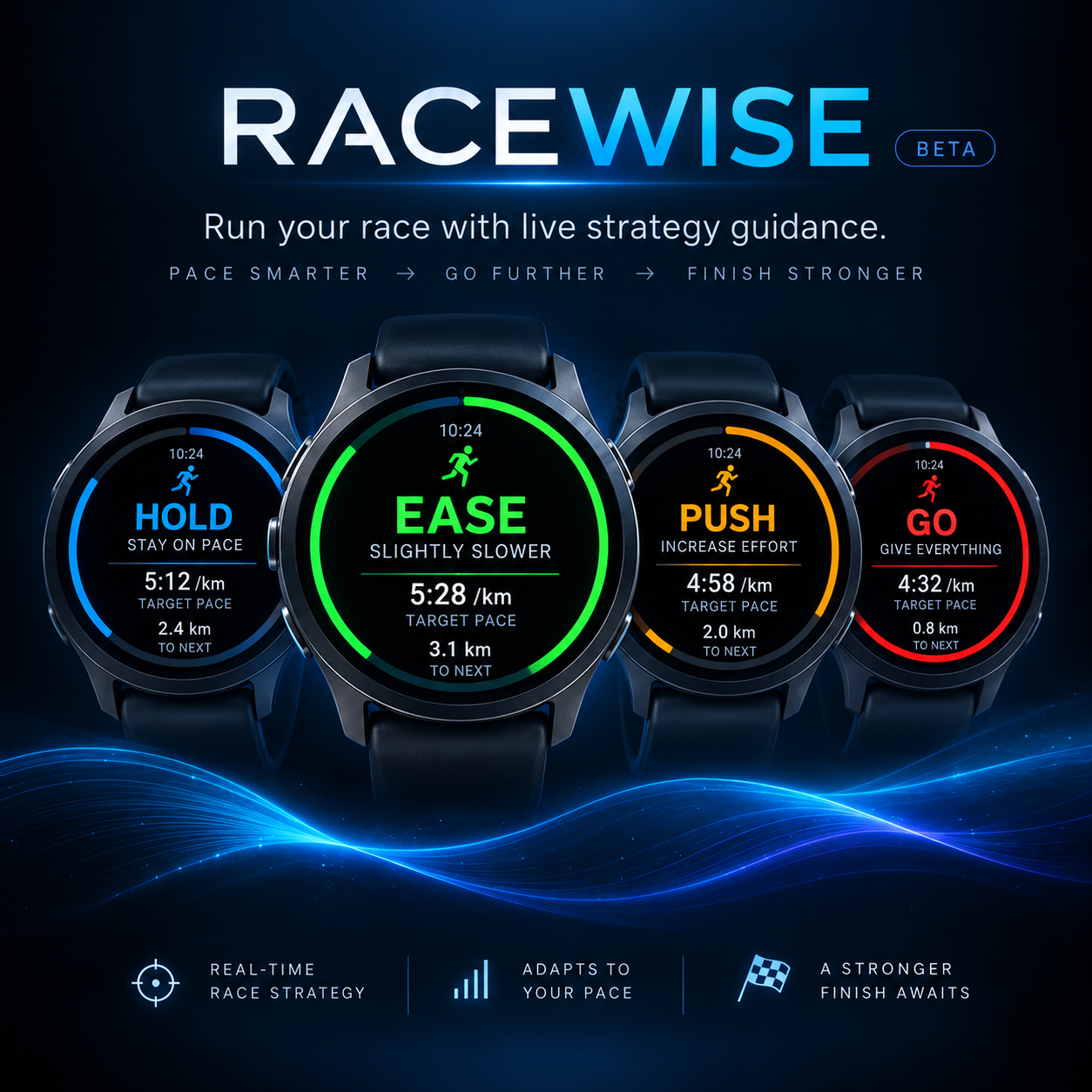
RACEWISE compares your race progress with your chosen finish goal. It shows predicted finish time, the pace needed to reach your goal and whether you are ahead or behind your plan, all on one easy-to-read screen.

Key features

Live race guidance

HOLD, EASE, PUSH and GO states make the next decision clear at a glance.

Your race, your goal

Choose a race distance and goal time, including custom targets.

Finish prediction

See your predicted finish and the pace needed to hit your goal as you run.

Progress and alerts

Track race progress with a ring and receive haptic cues when your guidance changes.

Best for

  • Races where you want a clear time target
  • Checking whether to hold, ease or push without doing mental maths
  • Using race guidance while Garmin records your normal Run activity
Garmin compatibility

Check the Connect IQ listing for the current compatible-device list when the store link is available.

Need help? Email .

← Back to all apps

SETUP & INSTRUCTIONS

Getting started

Setup

Install and configure

  1. Install RACEWISE from the Garmin Connect IQ Store on a compatible watch.
  2. Open your normal Run activity and add RACEWISE as a Connect IQ data field on a full-screen data page.
  3. Open RACEWISE settings on the watch and choose your race distance and goal finish time.
  4. Check the selected values before starting your run.
Access

Find it on your Garmin

  1. Open the Run activity's settings and find Data Screens.
  2. Add or edit a data screen and select the Connect IQ field option.
  3. Choose RACEWISE, save, then swipe or use the buttons to reach it during your run.

Menu names vary by watch model.

Instructions

Use it during a race

  1. Set your distance and goal time before the activity starts.
  2. Begin the Garmin Run activity normally; RACEWISE supplies the pacing screen.
  3. Follow HOLD, EASE or PUSH as your predicted finish changes.
  4. In the final section, GO prompts your finishing effort.
Help

Troubleshooting

  • If RACEWISE is missing, check that it was added to the Run activity's data screens.
  • If a target looks wrong, reopen the field settings and check both distance and goal time.
  • Try a training run before relying on the guidance in an event.